How to connect my domain?
Begin by adding your server to DollarDeploy. Link your existing DigitalOcean or Hetzner account or create a new one with free credits by following the instructions here.
Creating New Host from Your Hosting Provider
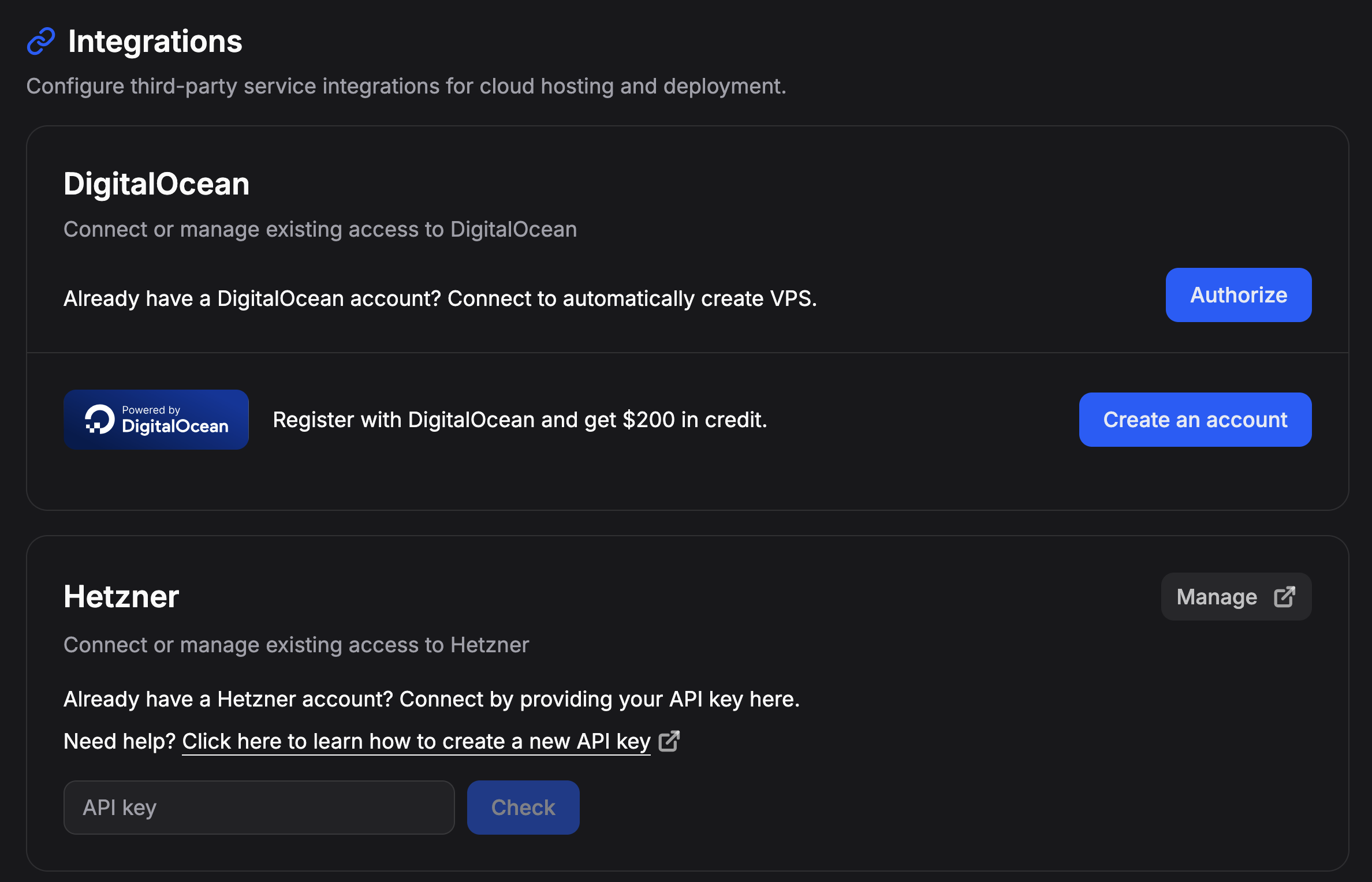
Go to Settings => Integrations and connect to your existing providers. You can only create new servers with the provider, to import existing server, add them manually in Hosts.
Creating a server
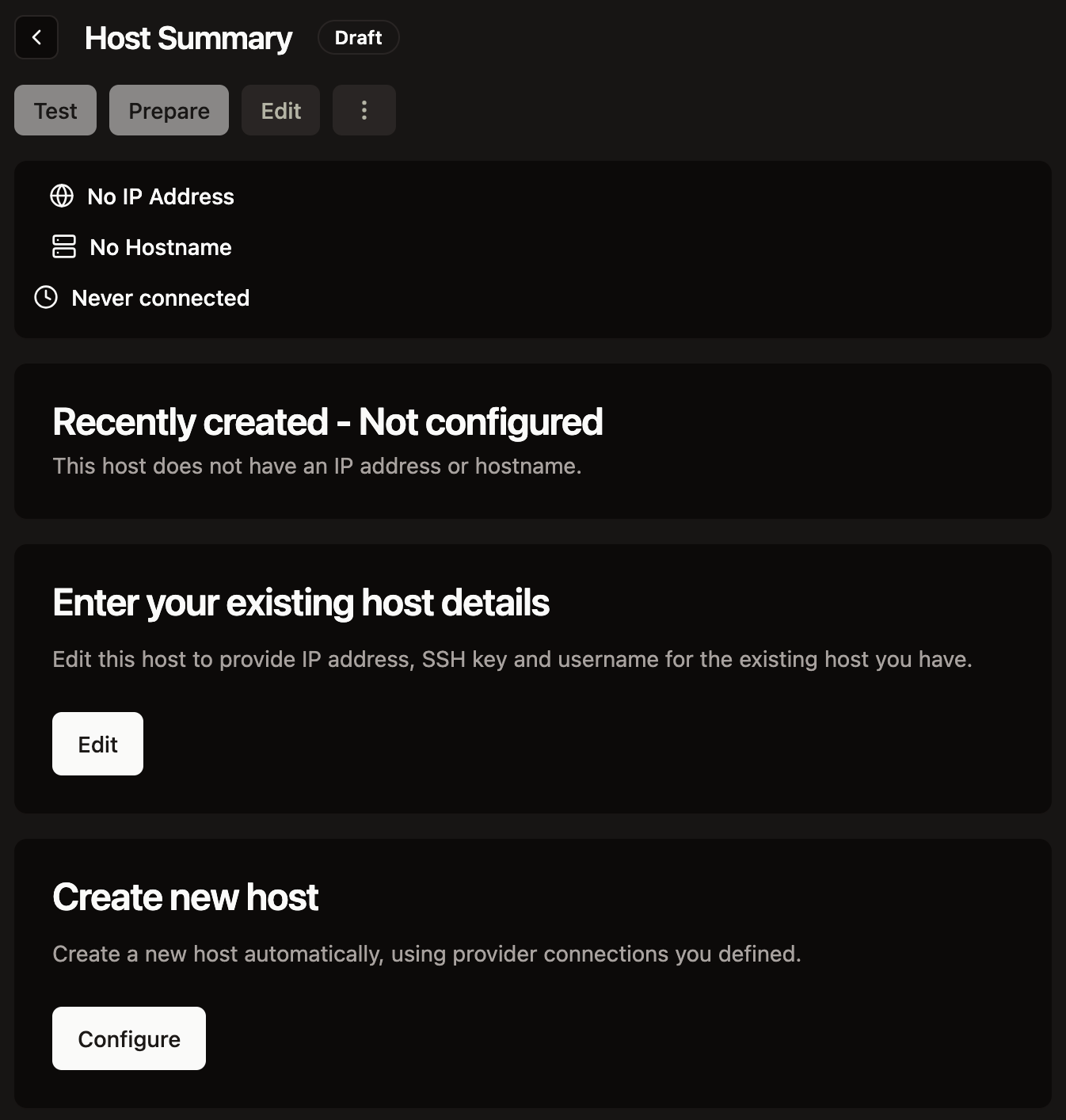
After you create new server, you can either manually enter details or press Configure to enter details on how you want this host to be configured
Server provisioning settings
To provision server using your provider and automatically configure it in DollarDeploy, press Configure
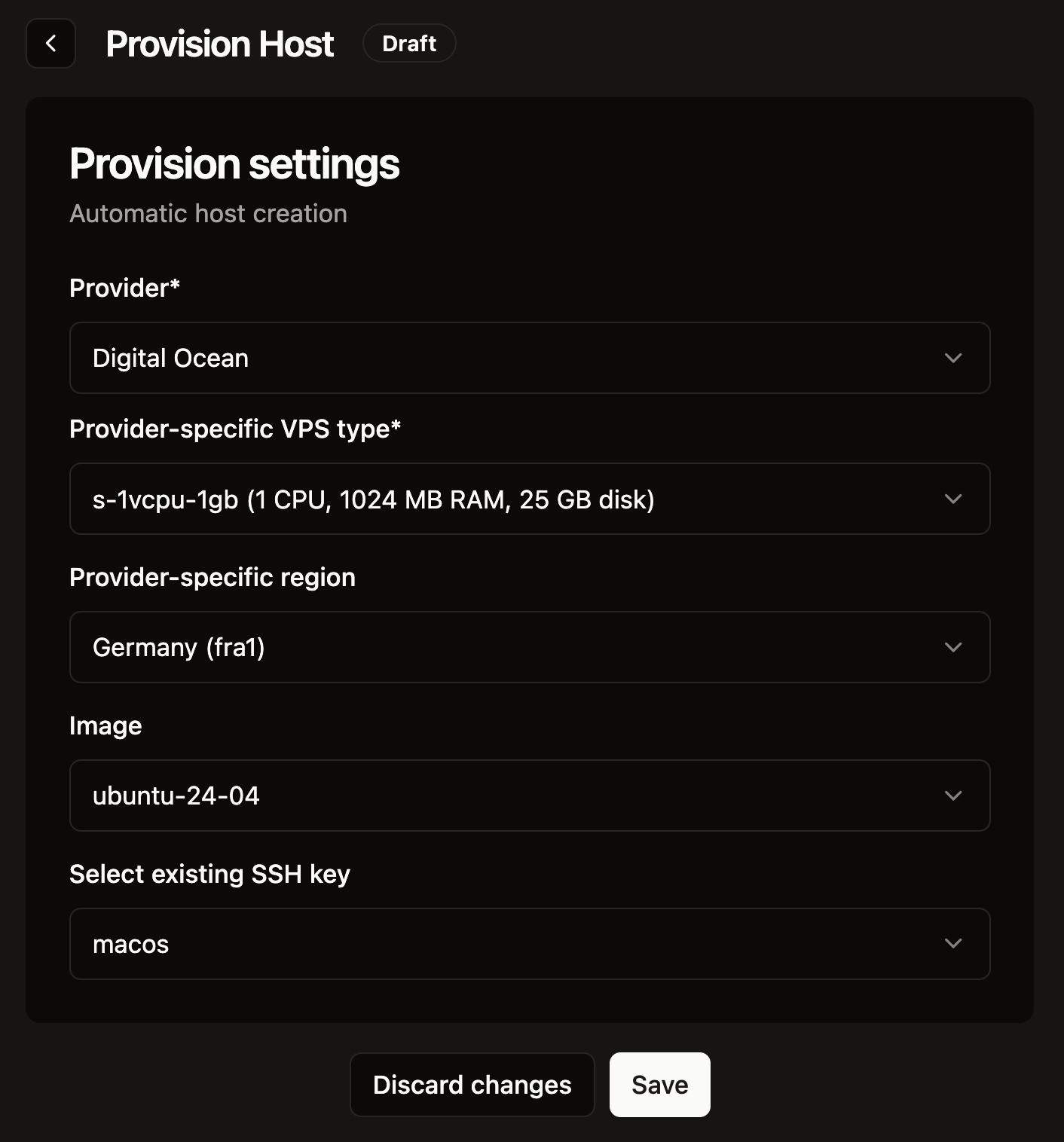
Select provider specific settings, which define how much memory, CPU or disk size you will get.
After that, you can create automatically, by pressing create button
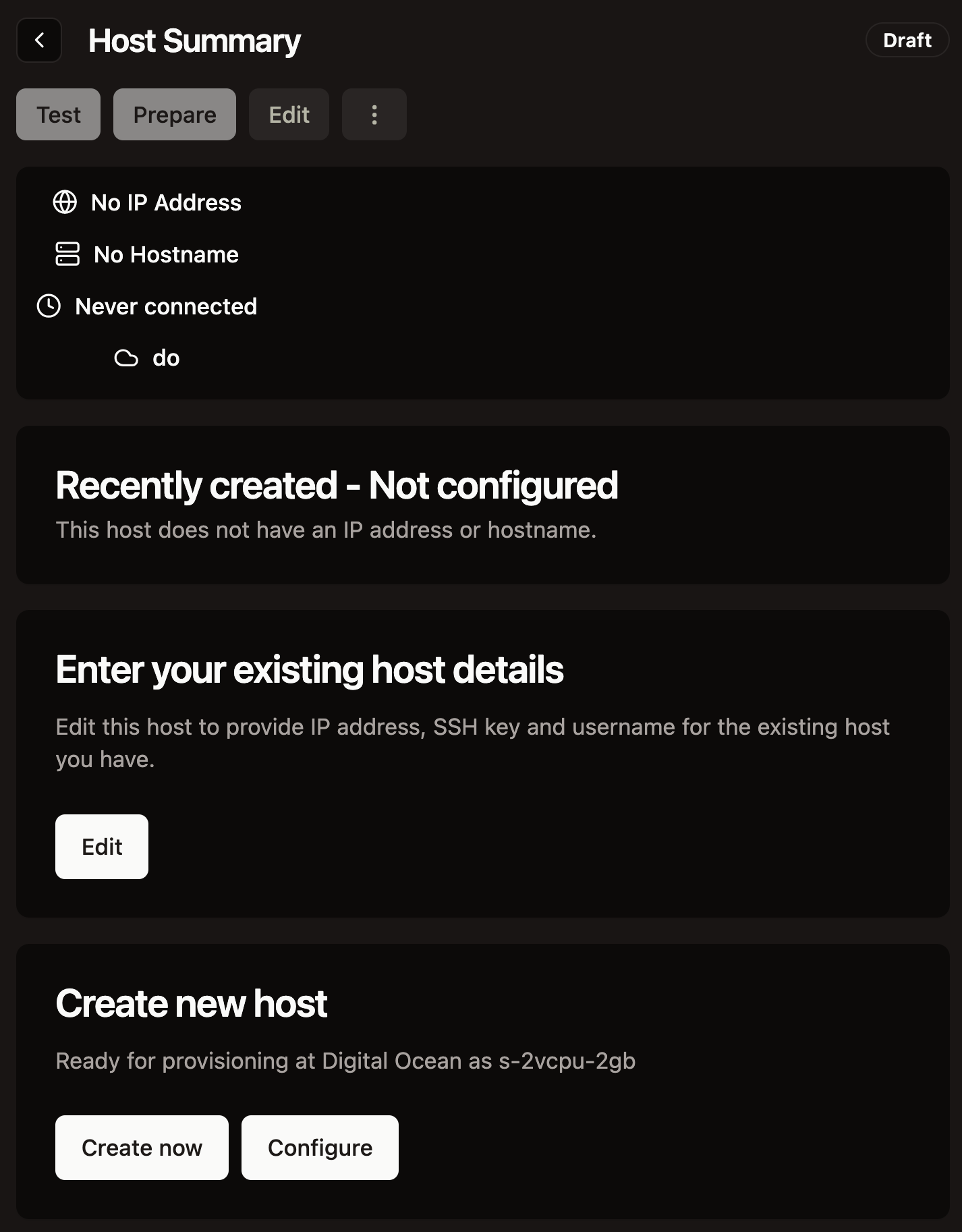
Adding DNS records for hostnames
After you press "Create now" the host will be created at server side.
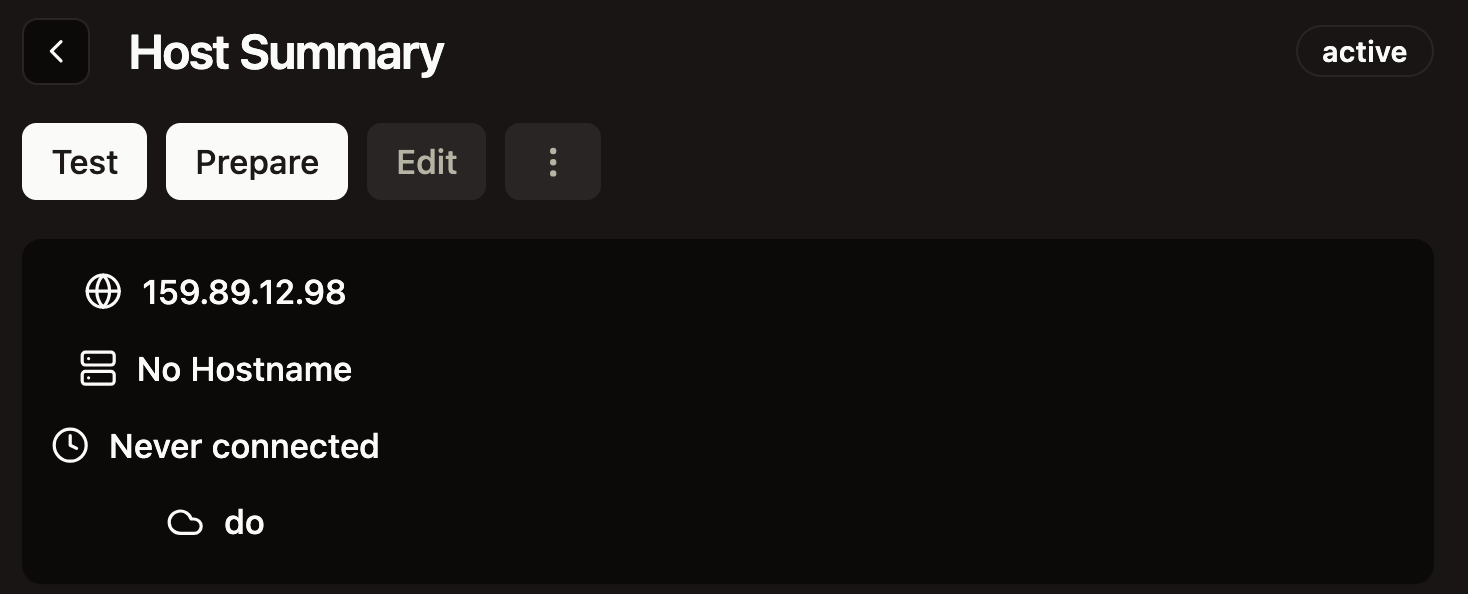
Copy the IP address and go to the domain DNS management interface, we will use Digital Ocean one for example:
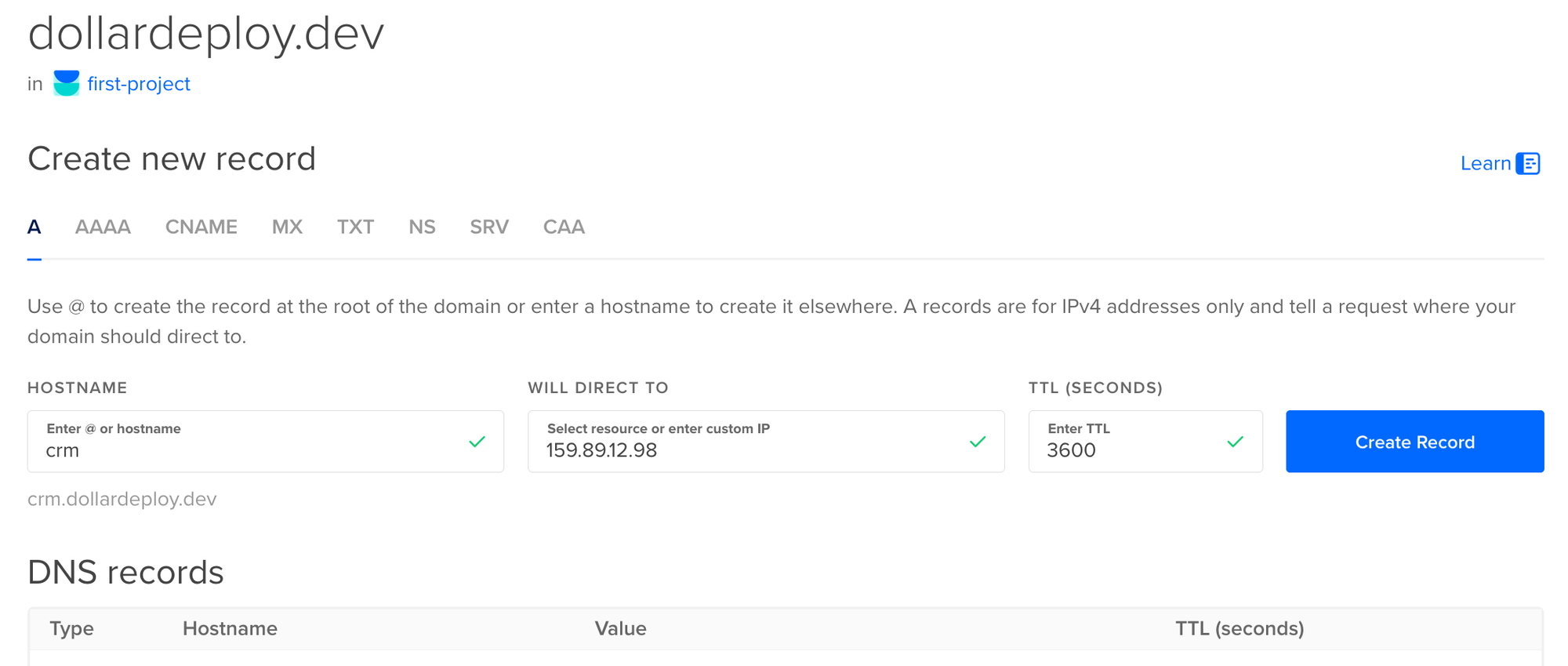
You need to add A type record <name>.domain.com which points to the server IP address. You can also add root record this way. Make sure to add www.domain.name as well (it can be a CNAME or A).
Now we can go and add new hostname to our host configuration:
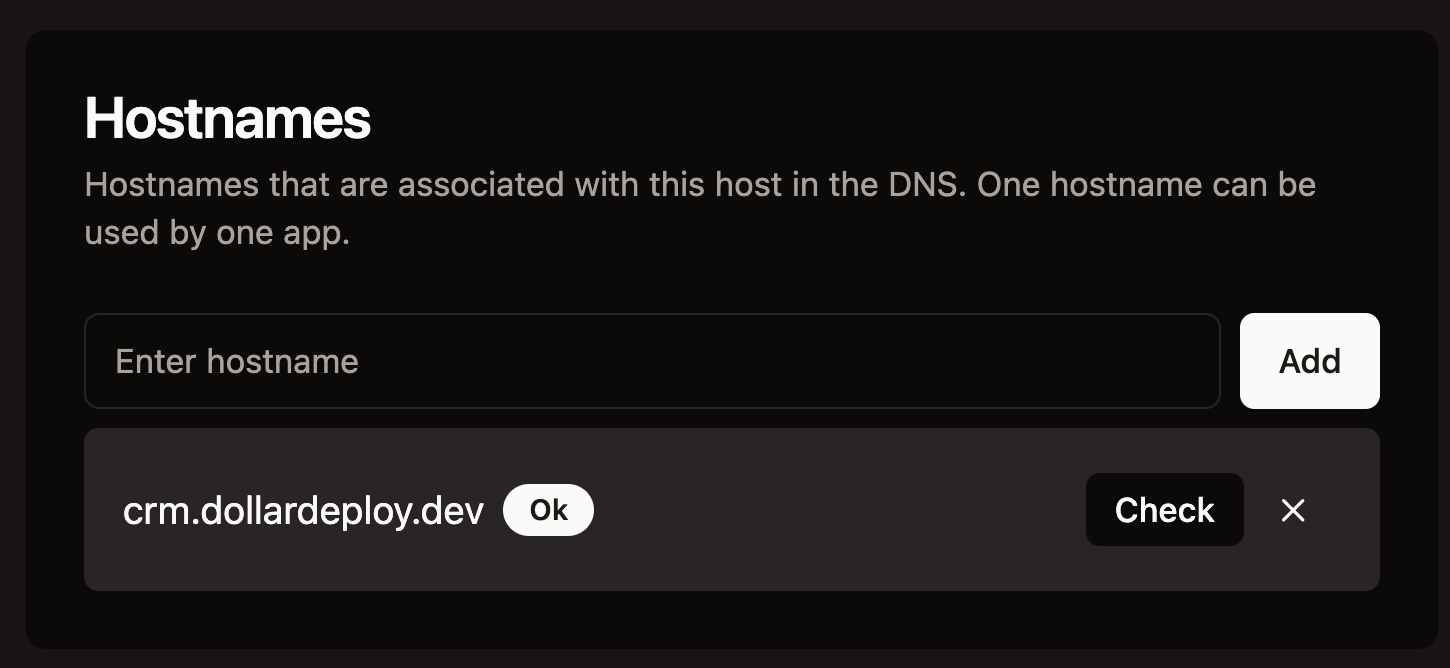
Press Check to validate everything is correct. Press Save.
Deploying to the server
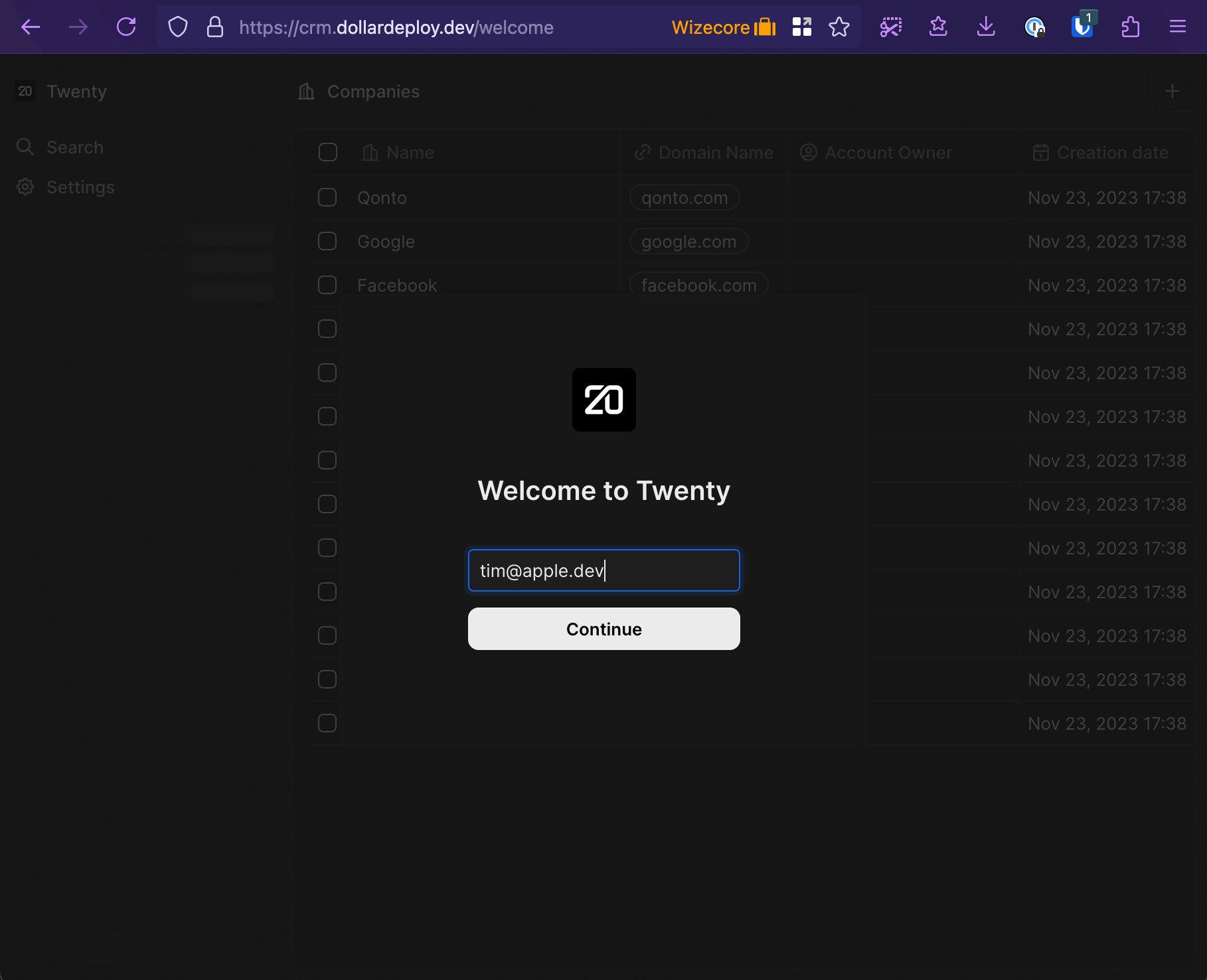
Now we can deploy to this server with custom DNS name, and we will have TwentyCRM running at https://crm.dollardeploy.dev
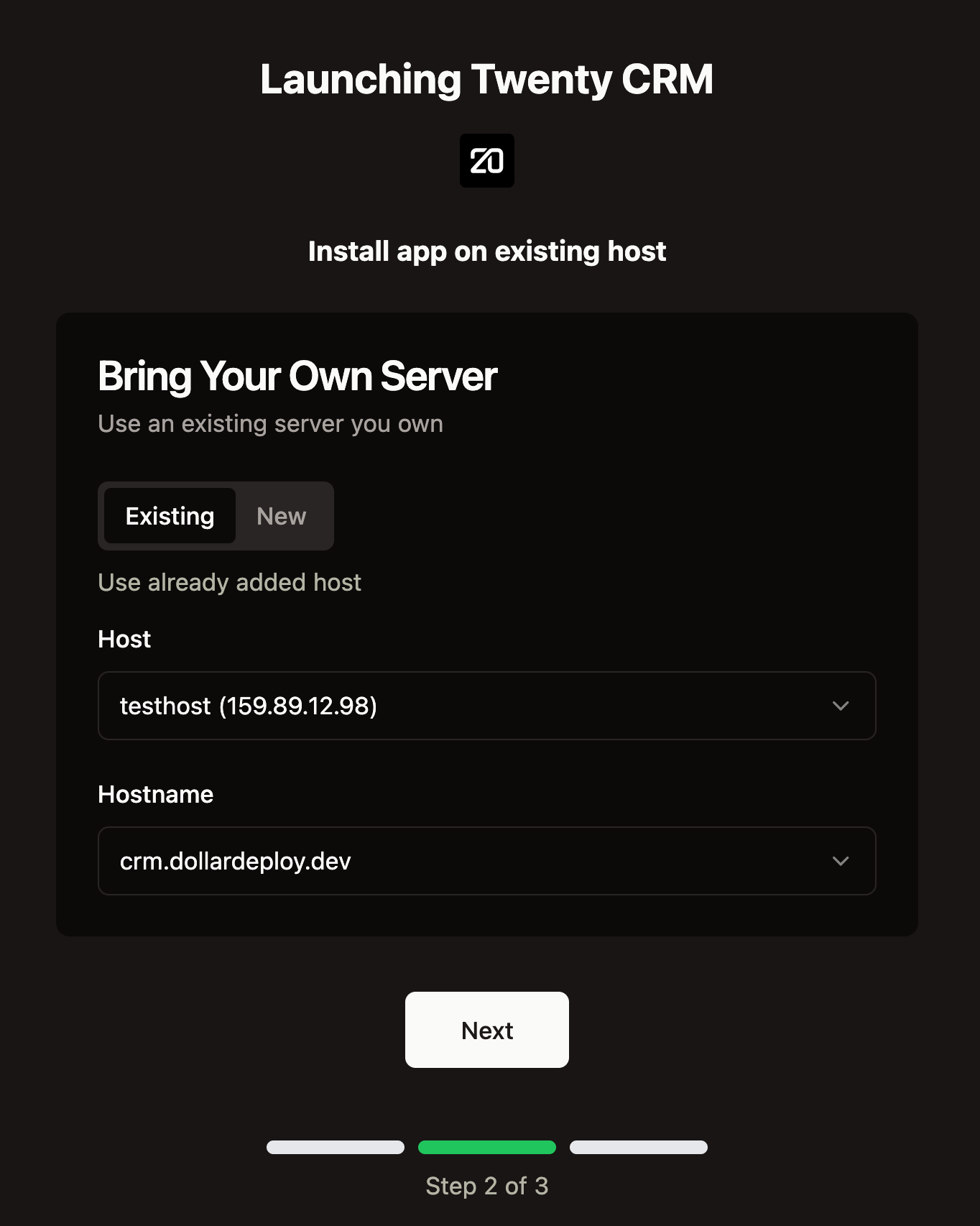
After a while, we will have this host prepared, and app launched on the server.
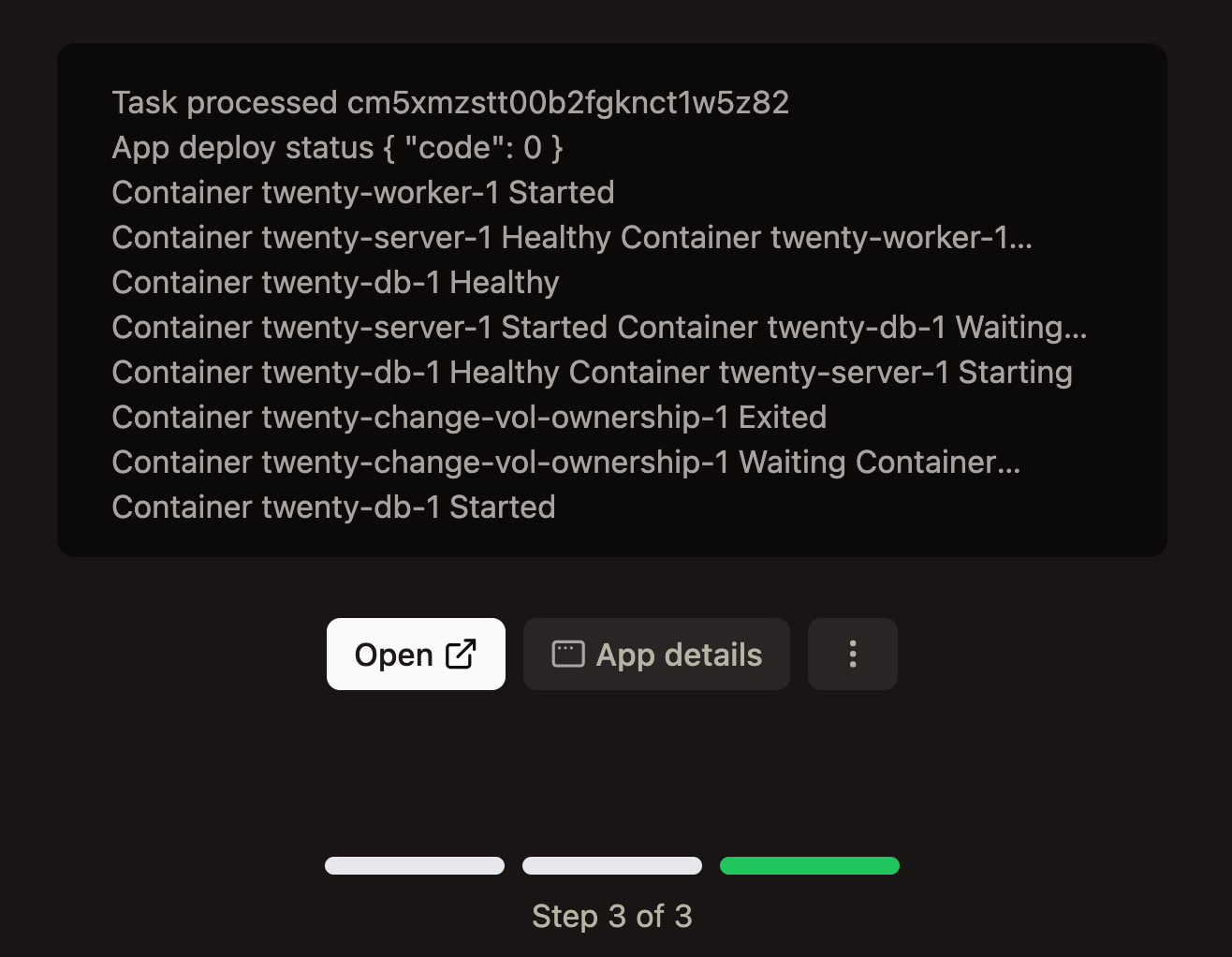
Your app is ready to use!